
-Eligible for Autopay + Paperless Discount
-Phone Guard Device Protection Available
-22GB Home Data + 5GB Roam Data
* 18 Month Freedom Agreement with required for promotional offer, applied as monthly credits over agreement term. While supplies last. Taxes due at time of sale based upon full retail value. Plan price includes $5 discount for autopay through bank account and paperless billing per line. Data Speeds Reduced to 3G speeds after reaching 22GB of data usage per line inside the NTW service area, and up to 15GB outside the NTW service area. 5G service only available in certain markets, with capable devices, and eligible plans. For more information visit www.nex-techwireless.com/5g. Telecom Connectivity fee $5 per line.
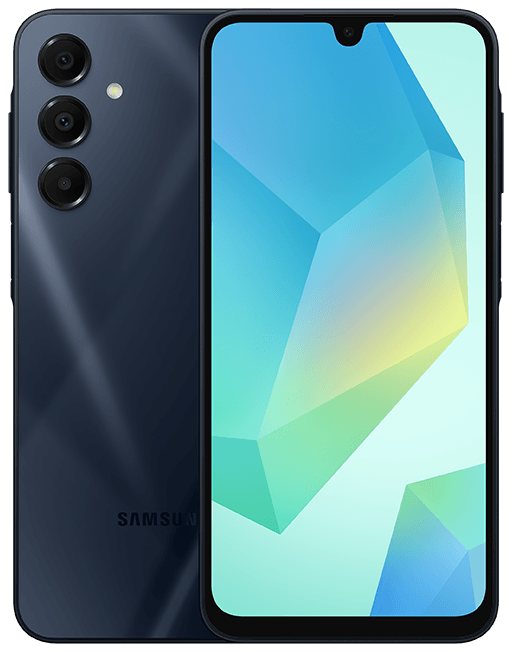 |
-6.7" FHD+ Super AMOLED display |
Download the Xplora Guardian App from the App Store or Google Play. Open the app and sign in with your Guardian account. If you don't have an account, select "Create Account" and verify your email before continuing.
 |
 |
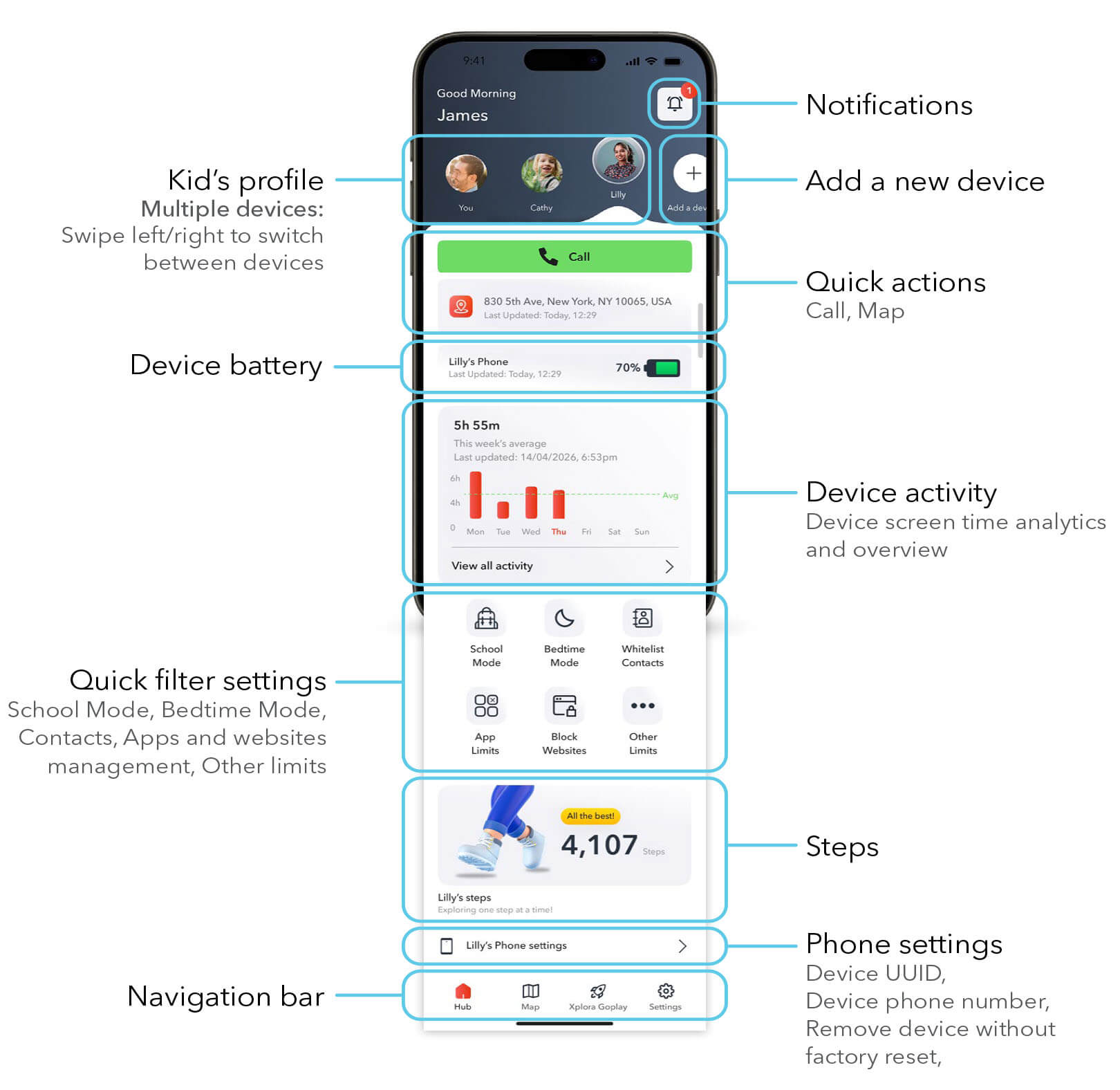
App Home Screen
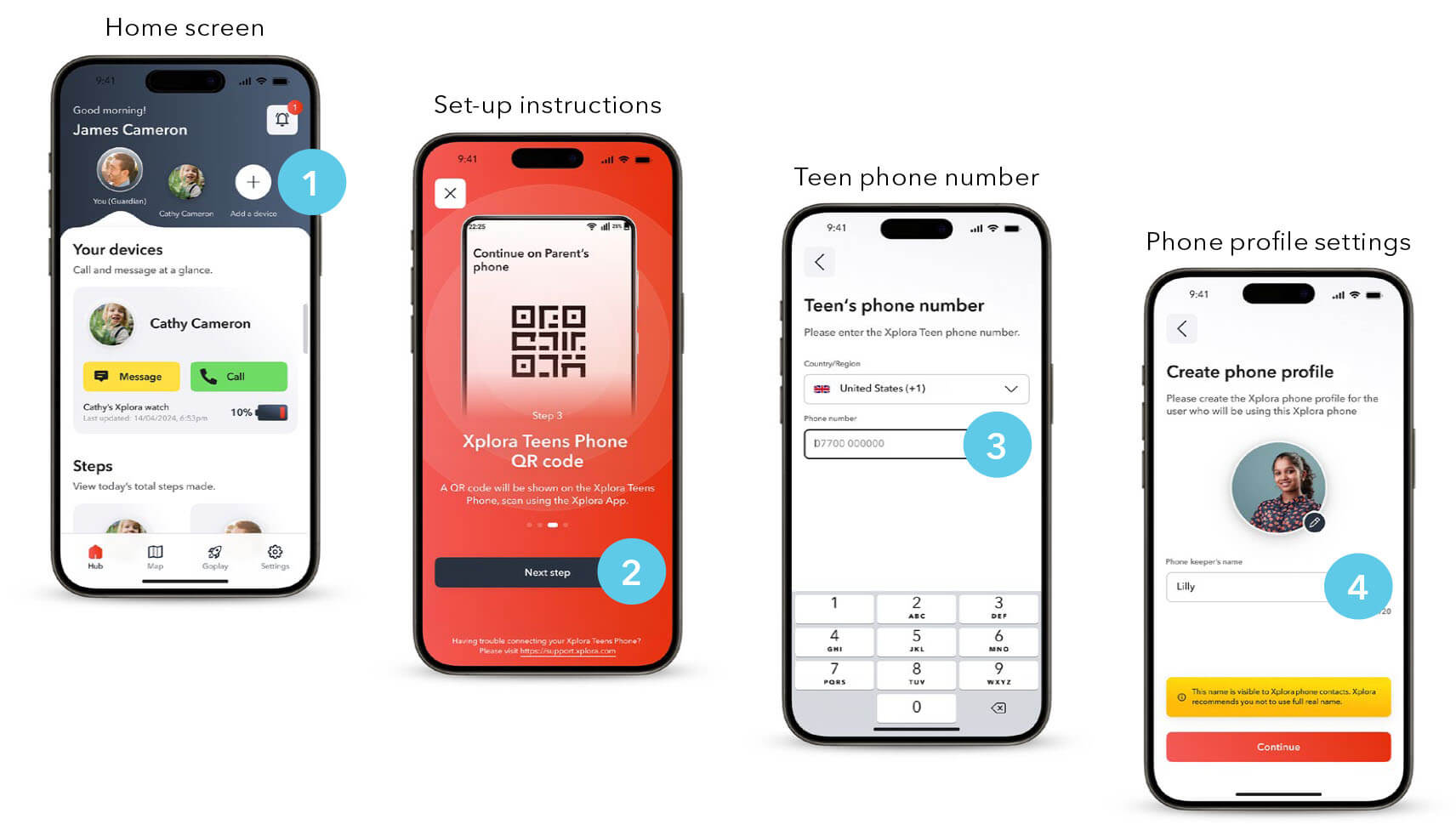
Pair Your Teen's Device
1. In your Guardian app, tap Add Device or the + symbol
2. Scan the QR code shown on the teen phone's screen
3. Add Teen's phone number
4. Name the device and add a profile picture to assign it to your teen
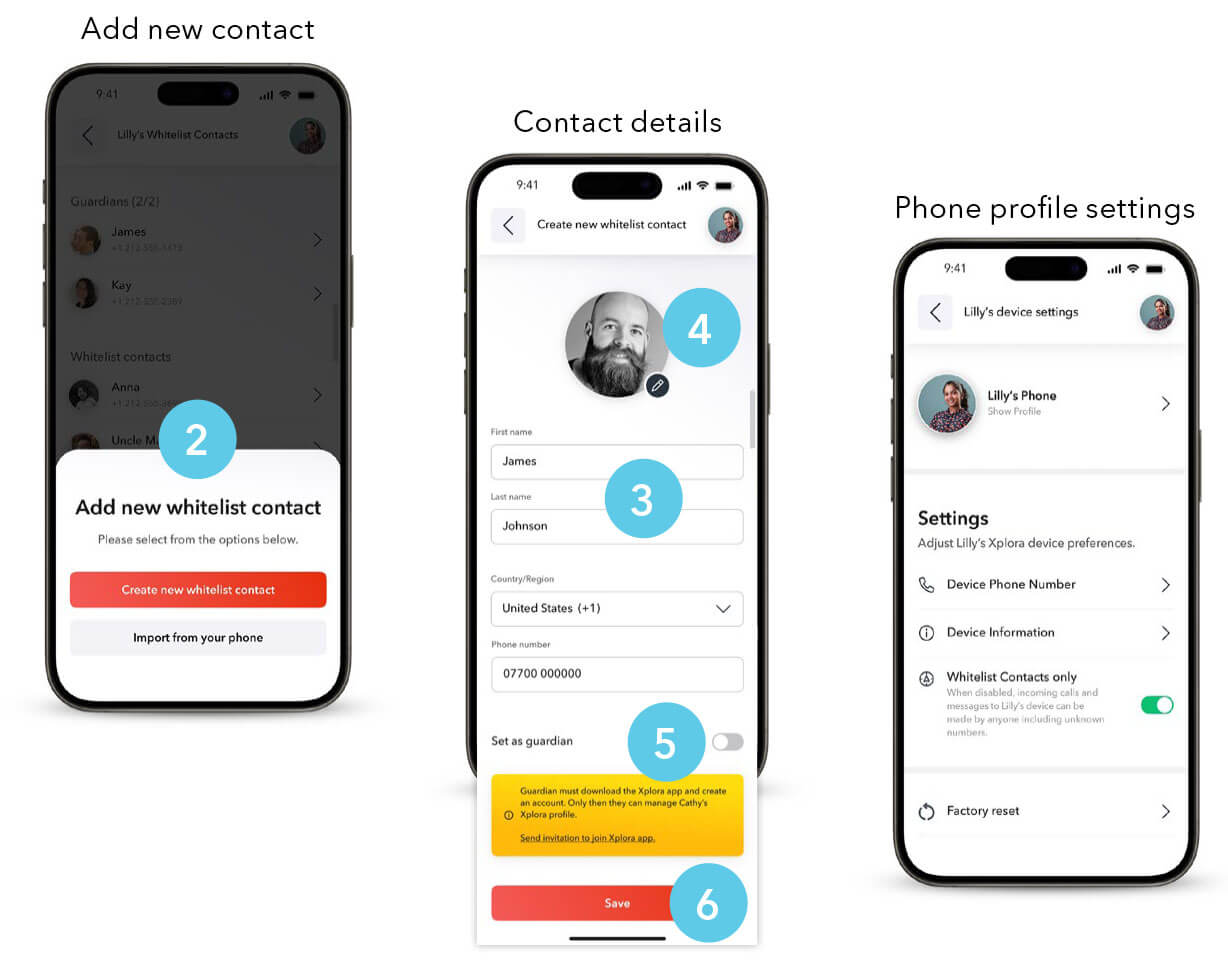
Setup:
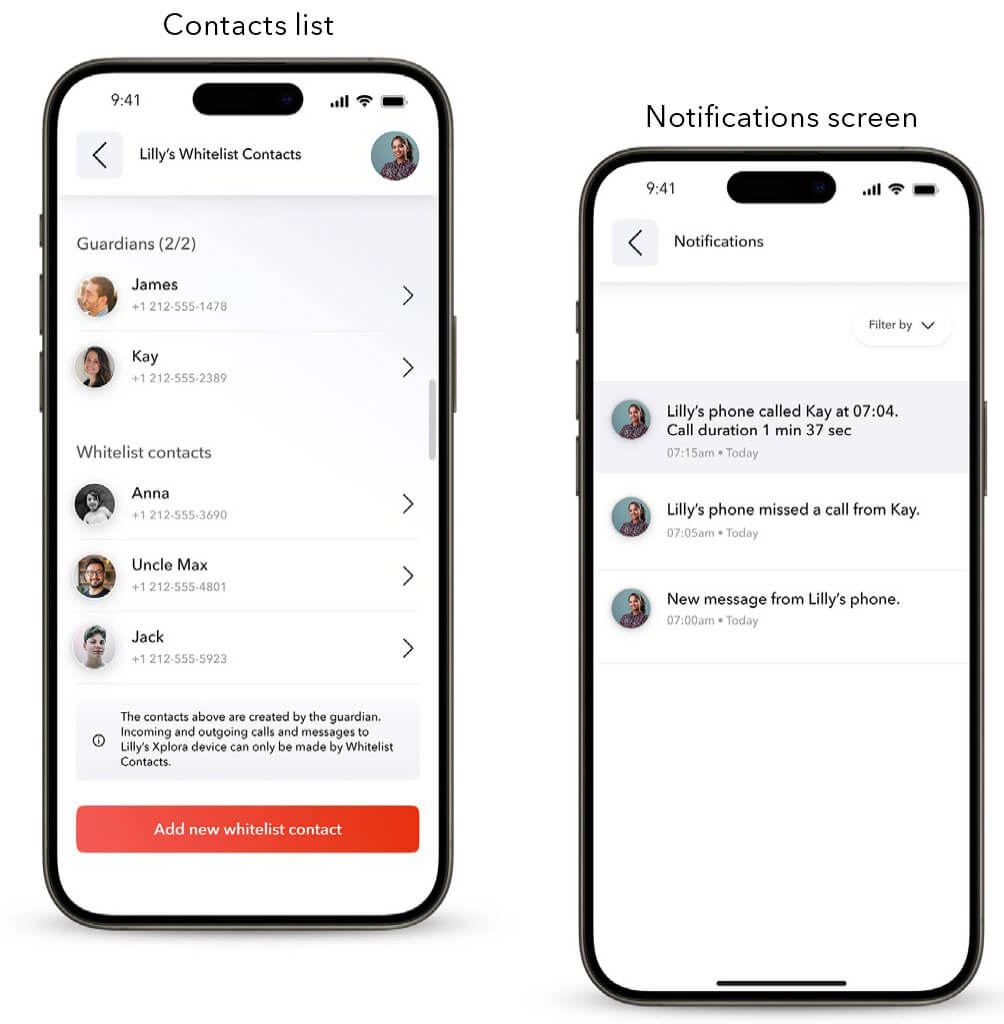
1. From the Hub, open Whitelist Contacts
2. Tap Add new whitelist contact and choose between:
-Create new whitelist contact
-Import from your phone
If you choose to Create a new whitelist contact:
3. Enter name and phone number
4. Add photo
5. Select Guardian or Regular
6. Save
If you choose to Import from your phone, follow the instructions in the app to add contacts from your contact list.
*You can toggle On/Off Whitelist contacts only on Device settings.
Contact types:
Guardians - limit 2 max, full control, GPS access, manage settings, SOS alerts
Whitelist contacts - 48 max, call and message only
Messaging is done via regular apps for messages.
You can add or remove contacts at any time.
*Contacts removed from guardian's apps are not removed from teens phone. Those contacts just become a non whitelisted contact.
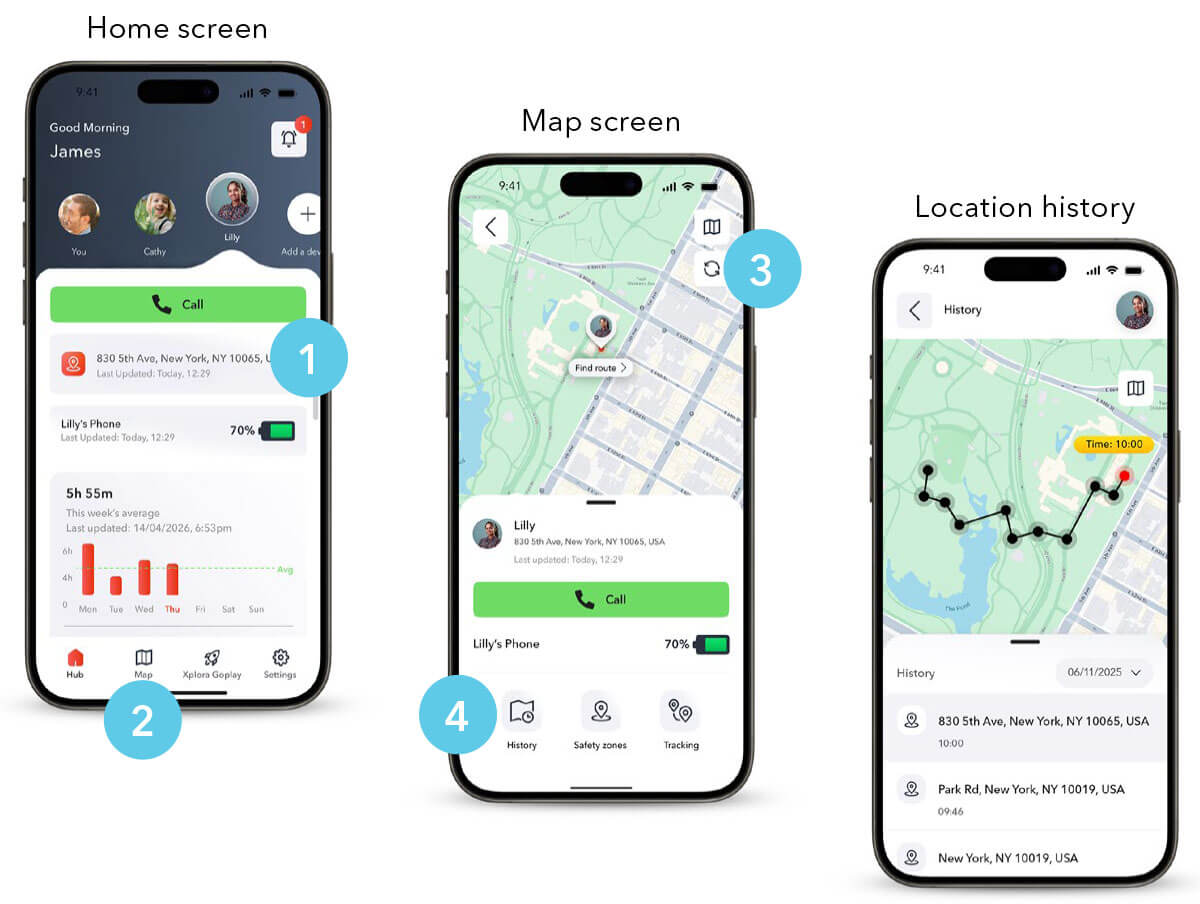
See their movement history
Viewing location:
1. Hub shows current position
2. Tap map or address for full view
3. Tap refresh for immediate update
4. Tap History for location history
View past 3 days
See path traveled
Timestamp for each point
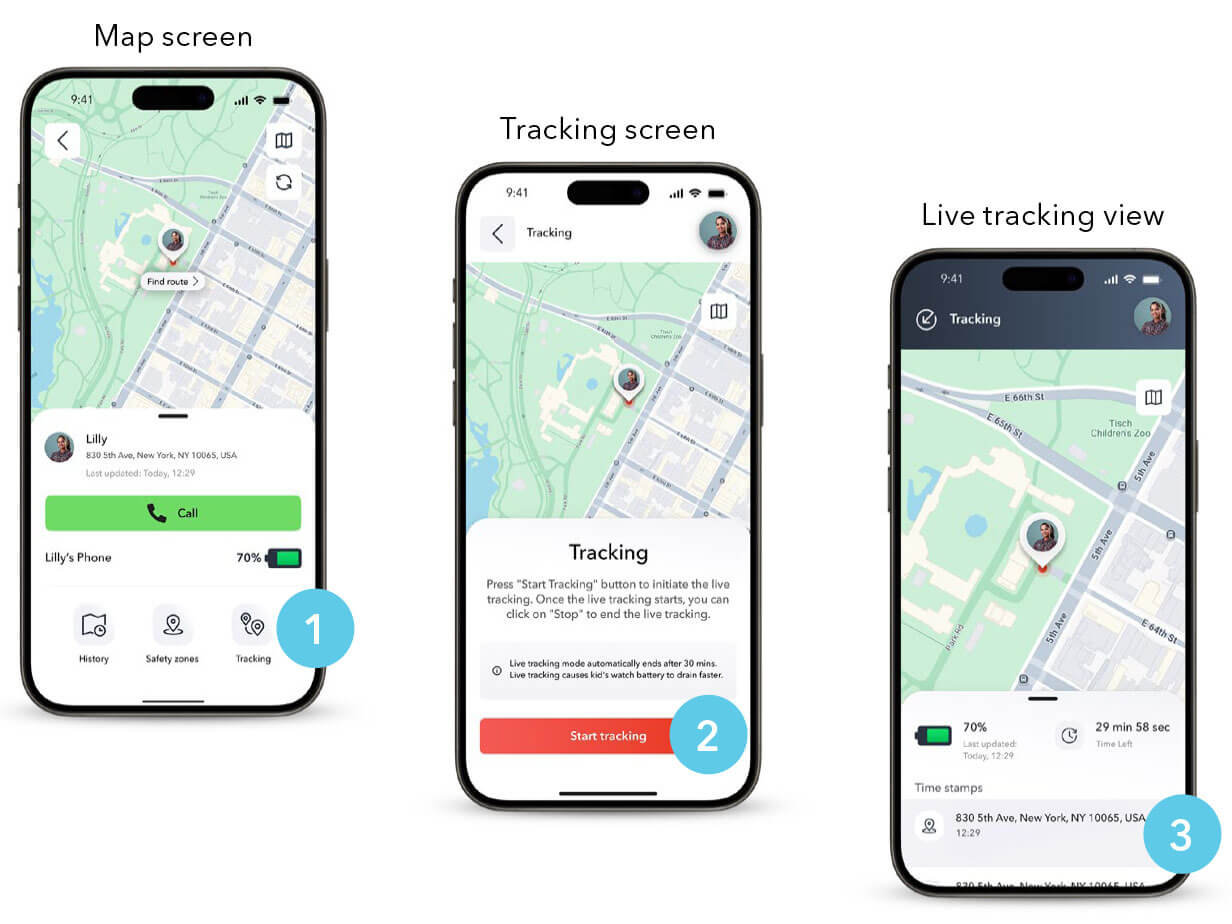
View your teen's real-time location
Viewing location:
1. From the Map, tap Tracking to activate location tracking
2. Tap Start tracking to start
3. See Time stamps with visited addresses
Live tracking ends automatically after 30 minutes
This function causes phone's battery to drain faster
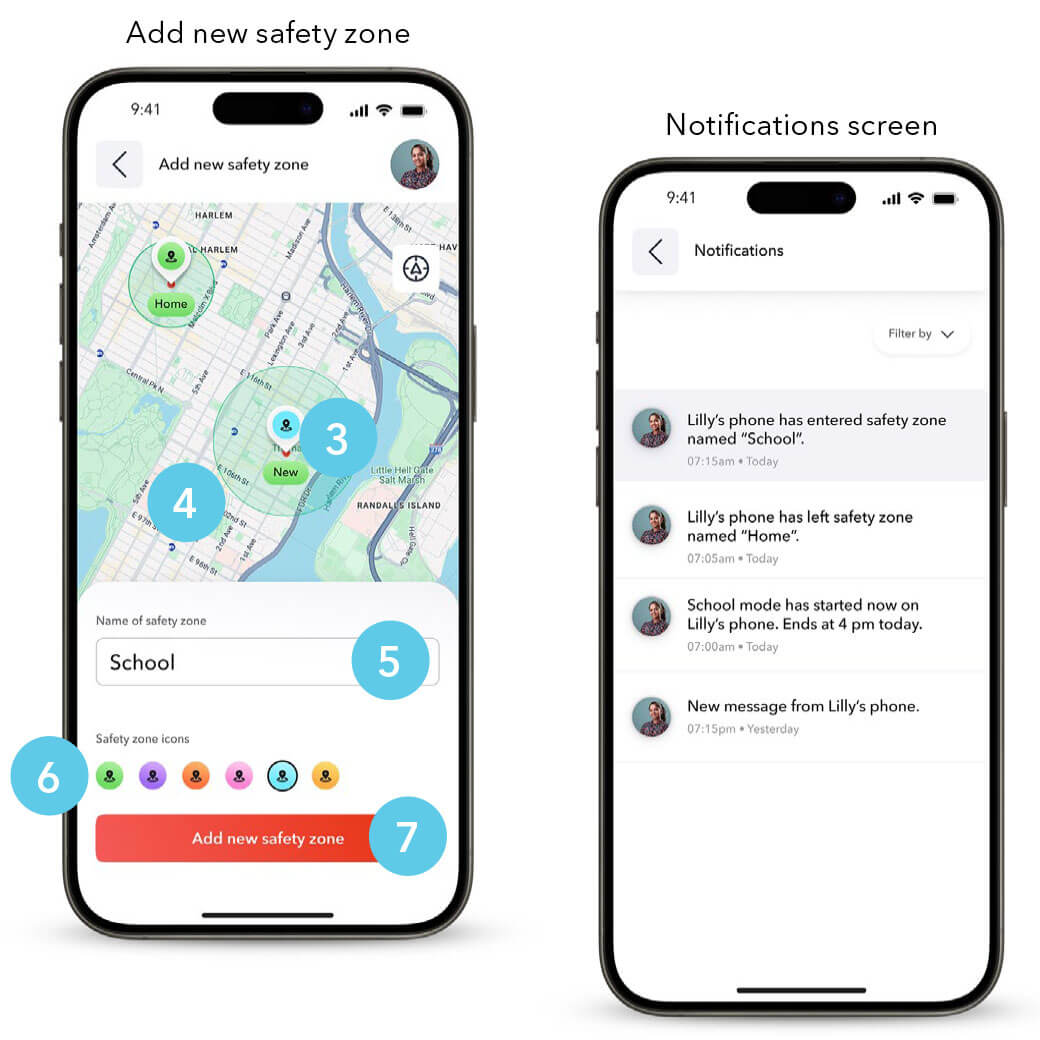
Setup:
1. From the Map, open Safety Zones
2. Tap Add new safety zone
3. Choose location (search address or drop pin)
4. Adjust radius
5. Name zone
6. Select icon and color
7. Save
Set up to 10 Safety Zones (home, school, sports, friends' houses)
Receive instant alerts when they enter or leave a zone
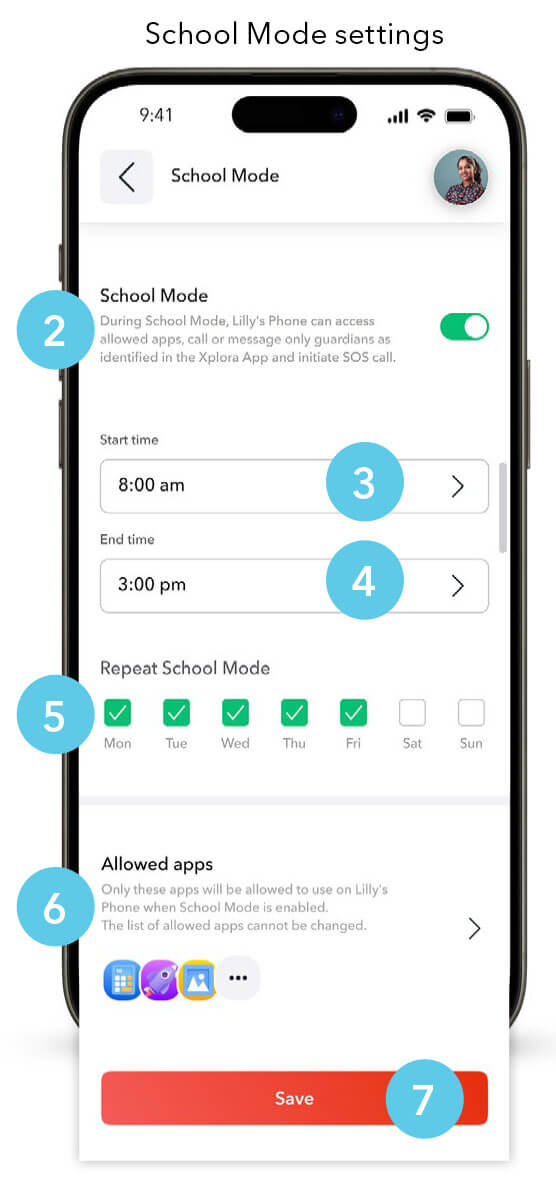
Limit distractions during class
| Function | Status |
| Calls | Guardians only |
| Alarms | Yes |
| Apps | No |
| GPS | Yes |
| SOS call | Yes |
Setup:
1. From the Hub, open School Mode
2. Toggle On/Off to enable/disable mode
3. Set start time
4. Set end time
5. Select days
6. View allowed apps
7. Save
*Allowed apps cannot be selected
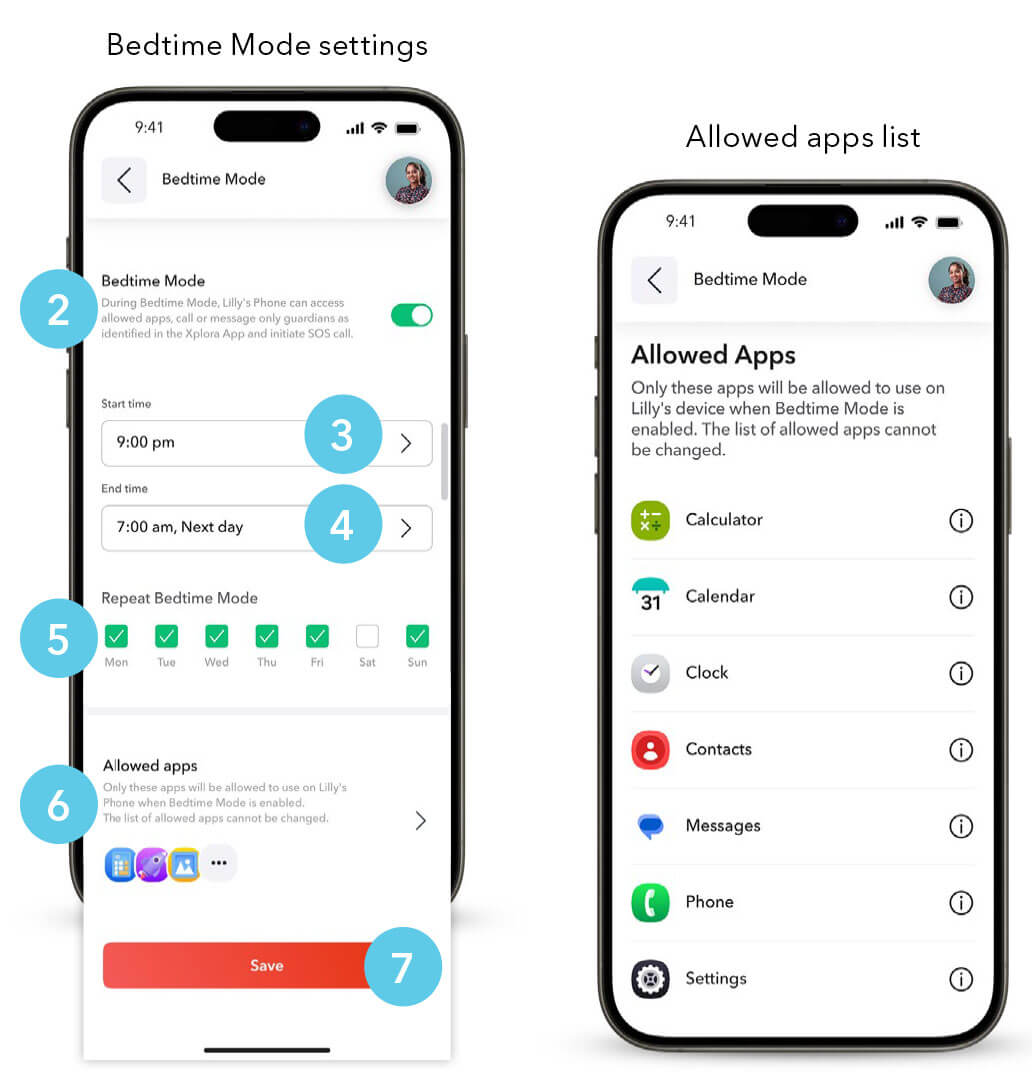
Set nightly quiet hours
|
Function |
Status |
| Calls | Guardians only |
| Alarms | yes |
| Apps | no |
| GPS | yes |
| SOS call | yes |
Setup:
1. From the Hub, open Bedtime Mode
2. Toggle On/Off to enable/disable mode
3. Set start time
4. Set end time
5. Select days
6. View allowed apps
7. Save
*Allowed apps cannot be selected
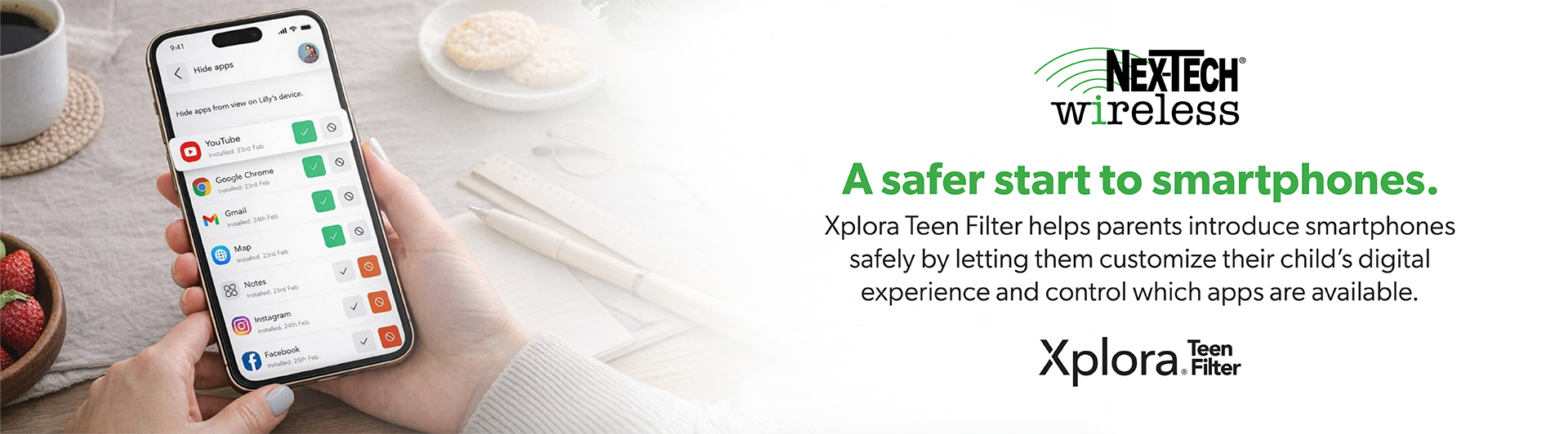
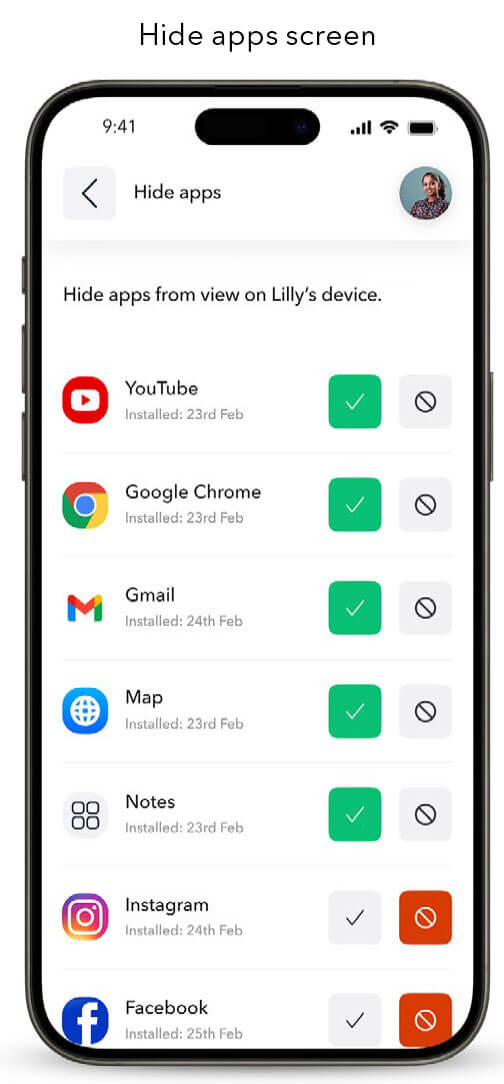
Hide or give access to apps
Setup:
1. From the Hub, open App limits and thereafter Hide apps
2. Select app to hide or give access to
*Changes will adjust in real time on Teen's phone
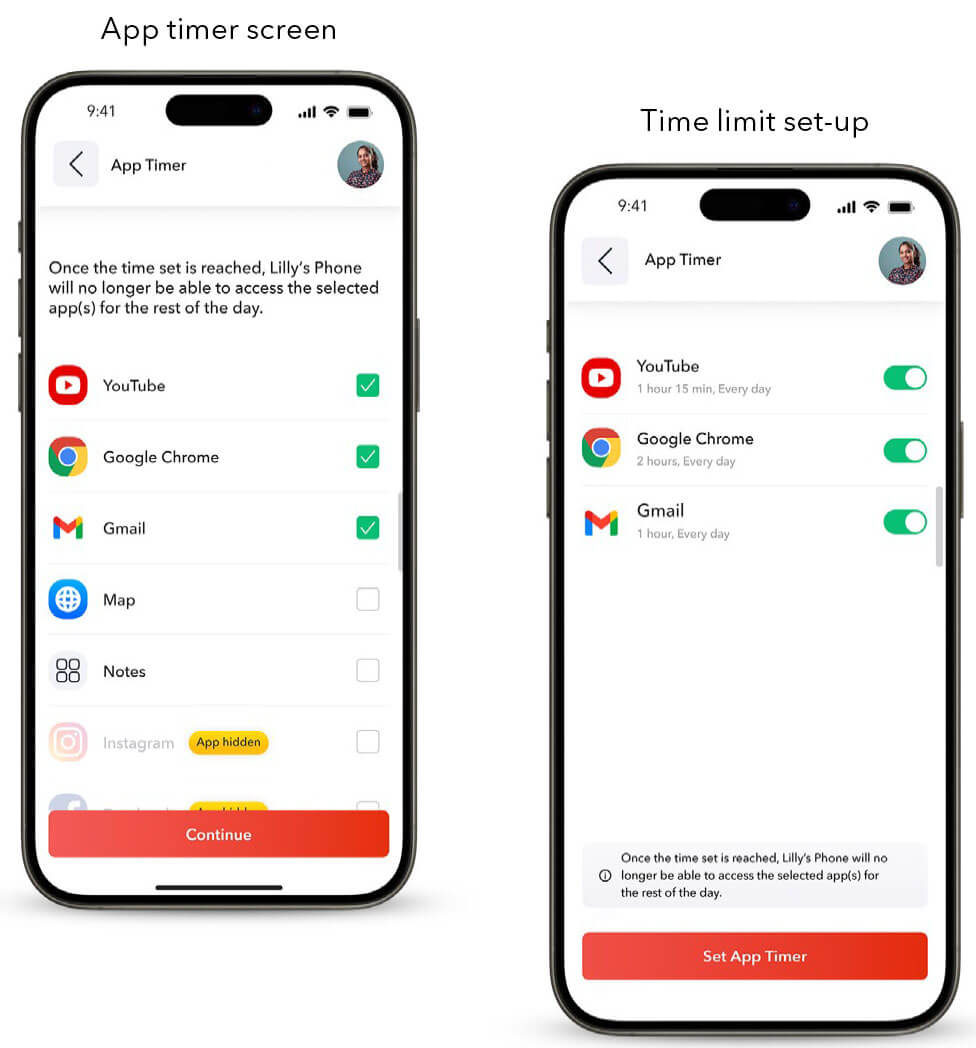
Control daily app time
Setup:
1. From the Hub, open App Limits
2. Select App Timer
3. Press Set App Timer
4. Select relevant app and press Continue
5. Set daily time limit (e.g.,2 hours)
When time limit is reached, the app will lock until the next day
*Adjust timers anytime as your teen eards more independence
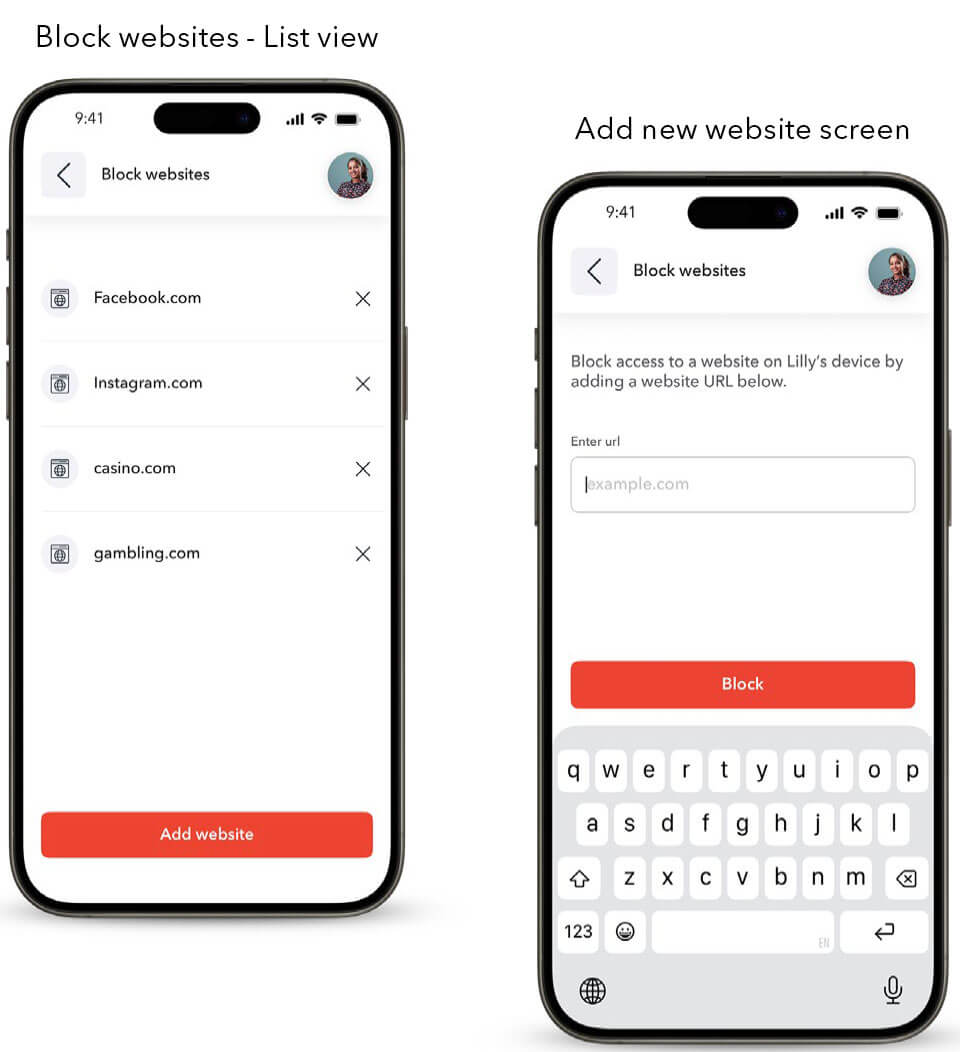
Listed websites are blocked and cannot be accessed by Teen's phone
Setup:
1. From the Hub, open Block Websites
2. Tap Add website
3. Enter website URL
4. Tap Block
Blocked websites can be removed at any time
*Only Google Chrome and Samsung Browser are supported
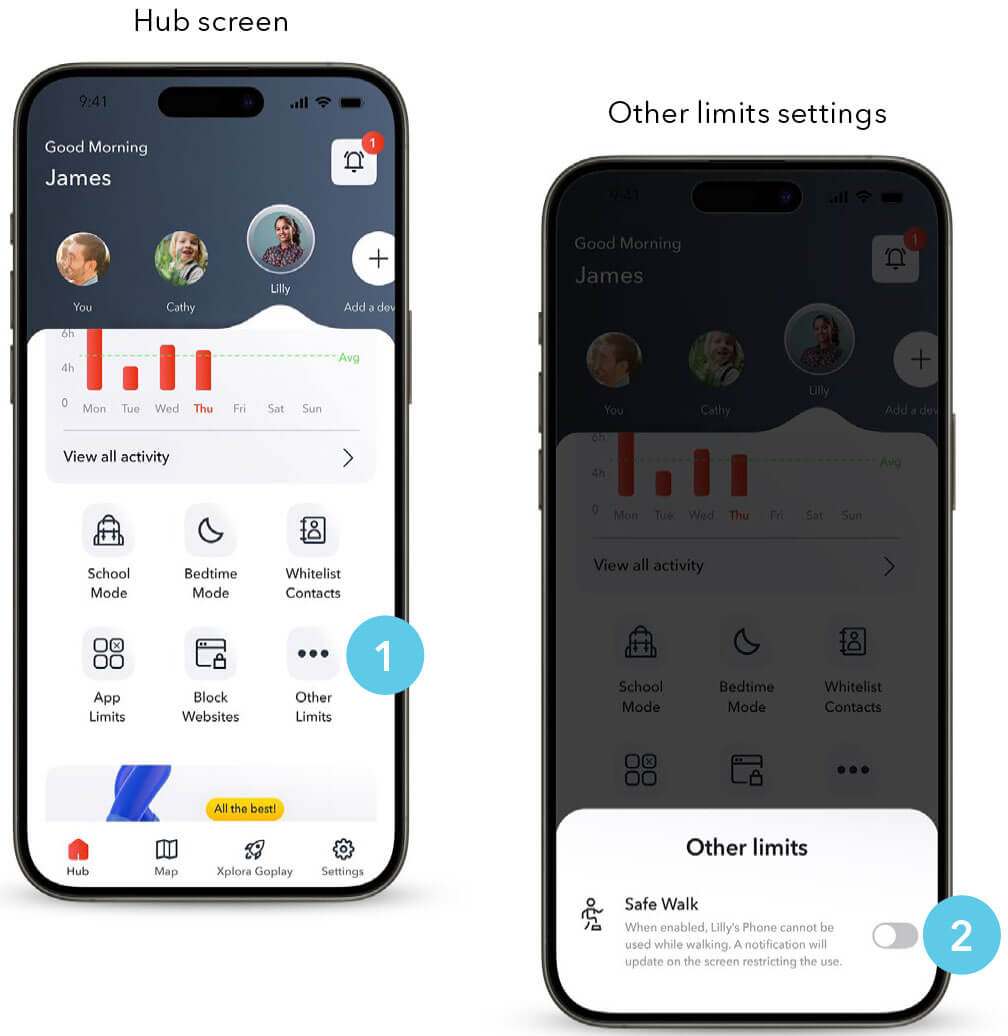
Safe walk
When enabled, a notification will update on the screen, restriction its use.
Setup:
1. From the Hub, open Other Limits
2. Toggle as needed
*Enable Safe Walk for safety near roads or busy areas